For the Tower PC:
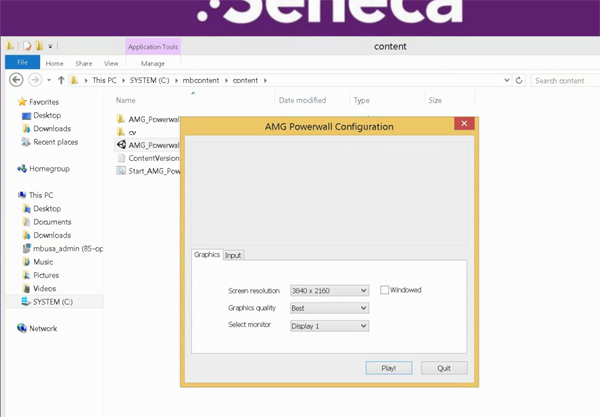
Open File Explorer, go to C:\mbcontent\content
Highlight AMG_Powerwall.exe, hold SHIFT key down while double clicking. (You may have to try a couple times)
Under Screen Resolution, choose 3840 x 2160.
Click Quit, not Play
Restart the content by double clicking Start_AMG_Powerwall in that same folder, or use the shortcut in a folder on the desktop.
For the Controller PC:
Open File Explorer, go to C:\mbcontent\content
Highlight AMG_Controller.exe, hold SHIFT key down while double clicking. (You may have to try a couple times)
Under Screen Resolution, choose 1920 x 1080.
Click Quit, not Play
Restart the content by double clicking Start_AMG_Controller in that same folder, or use the shortcut in a folder on the desktop.
Comments